Outdated Penang Uncle

Showing posts with label MS office. Show all posts

Thursday, December 27, 2012

WPS Office - Another MS Office Alternative

MS Office is always the main office software being use by main stream business and most of the industry. However if you are just starting a new business or a SOHO or a freelancer, buying a MS Office software can be very costly. Nowadays PC maker tried very hard to save cost, therefore some of the time the PC/laptop you bought is installed with evaluation version of MS Office or some just don't have MS Office at all.

MS Office Home and Student edition cost USD $150. MS Office Home and Business edition cost USD $280. Plus you need to pay additional USD $25 per language pack that you want to include. That's is very expensive.

Luckily there is always a lot of nice people on the world wild web (world wide web) to write free software. There are a lot of alternative to MS Office, among the famous one such as OpenOffice and LibreOffice. WPS Office is a made in China (what is not made in China nowadays? ;) ) alternative to MS Office.
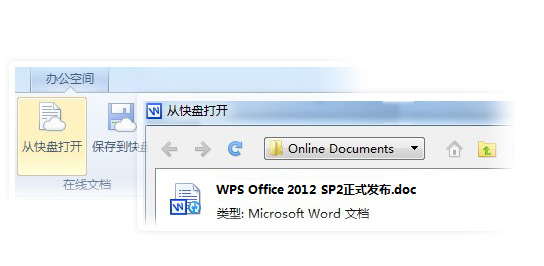


Recently WPS Office has been upgraded to SP2. What so special of WPS Office?
  1. It is very small, setup file 41.6MB only.
  2. It opens documents on cloud storage.
  3. Auto recovery.
  4. WPS Excel supports long numbers (Unlike MS Excel changed everything to xx.xxE+xx).
  5. Free template from WPS forum.
  6. Directly post to WeiBo (China's twitter).
The only drawback is WPS website is completely written in Chinese. No problem for people that is Chinese educated, but what about other people? I am downloading it right now to see if WPS Office can support English or other language only Windows.

If you are adventurous, go to this link to download it now:
http://www.wps.cn/product/wps2012/sp2/

Update: Confirmed that WPS Office is only in Chinese. Another thing is it will not ask your permission before it take over all the office files to be open by WPS. What a shame, sounds like another non-sense software (Remember Real Player?). I am uninstall it now.


Like this if you are FB user and you think this post is useful. The button is at top right of content of this post.
+1 this post if you are Google+ users and you think this post is useful.
Hope you will enjoy this post, subscribe to my RSS or mailing list or follow me on blogger or twitter. :)
source: wild wild web

Saturday, August 11, 2012

Find Windows CD Key and others

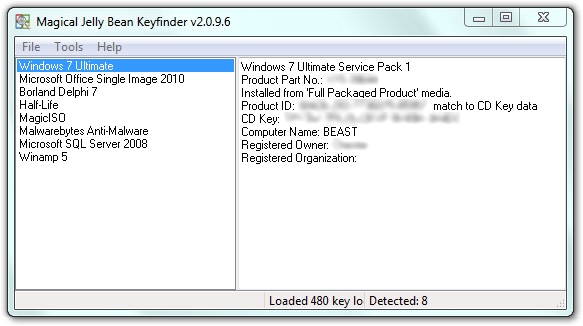
Saw this software / apps at a website. Magical Jelly Bean Keyfinder (no, not Android 4.1) is a free apps that helps to retrieve your Windows, MS Office, Winzip and many more CD Key. Sometime we might misplace the original DVD of the Windows, MS Office or other apps after we copy all the installers into another HD or partitions. So when we want to format and reinstall the Windows and etc, we can't find the CD key. Some might have to spend times and money to get it from Microsoft or other software company, or buy another one?

pix credit: http://www.magicaljellybean.com/keyfinder/


Anyway, with Keyfinder (I don't want to say the full name again), you can retrieve the CD key and save it down on a USB drive or papers.

Where is the catch you might ask. Yes, this apps only support 300+ software (as it claimed), if you want more coverage like 3600+ programs, then you have to buy the full version, which is called Recover Keys, which cost US$24.95 for single license.

Okay to the apps/software:
http://www.magicaljellybean.com/keyfinder/
Official portable version available, woohoo!


Like this if you are FB user and you think this post is useful. The button is at top right of content of this post.
+1 this post if you are Google+ users and you think this post is useful.
Hope you will enjoy this post, subscribe to my RSS or mailing list or follow me on blogger or twitter. :)
source: internet!

Thursday, July 19, 2012

Office 365 Failed

Microsoft is giving out free trial on it's latest Office 365, the cloud based MS Office. While previous version of Office 365 allows only corporate users, this new Office 365 open up to personal users as well.

What Office 365 anyway? Basically you don't need to install hundreds of MB of Office files (if not GB) into you laptop or computer. All you need is to install a very small program from MS and internet connection. Everything you do will be through internet connection, and then the cloud server will store all your works (SKyDrive in this case).

Office 365 failed on Outdated Penang Uncle blogspot dot com

If you already have hotmail or Windows Live account, you can directly sign-in with the user name and password.

Office 365 failed on Outdated Penang Uncle blogspot dot com

Okay, here come installation time. I need to download the setup file which is smaller than 1MB.

Office 365 failed on Outdated Penang Uncle blogspot dot com

Okay, now after the file being downloaded. Double click on it and start the installtion process. So I waited and waited. Somehow nothing happen. Okay, kill it on task manager. Double click the setup file again. Now something show up:

Office 365 failed on Outdated Penang Uncle blogspot dot com
Wait a minute, I am using Windows 7, the original version. Yes, I have validated that through some MS genuine validation tool. Now why you say I am not Windows 7 or above?

Then I go back to download the 64bit version. 32bits was the recommended version, therefore I downloaded it first. But 64bits version also gave me the same result, which is:
Office 365 failed on Outdated Penang Uncle blogspot dot com

I was too lazy to find out the root cause. Therefore this post.

However I am still able to create new MS Office docs or edit them on SkyDrive. The interface I used I supposed is Office 2010, not Office 365.

Come on MS, please give me a break, if you really want to give out free trial, please make sure everyone can install it. Thanks.

Btw, go to below link to try your luck with Office 365:
http://officepreview.microsoft.com


Like this if you are FB user and you think this post is useful. The button is at top right of content of this post.
+1 this post if you are Google+ users and you think this post is useful.
Hope you will enjoy this post, subscribe to my RSS or mailing list or follow me on blogger or twitter. :)
source: my rant

Tuesday, September 6, 2011

Print Large Image to Multiple pages in Windows

I never thought of Windows can do this, yes, just Windows, and its default programs. No third party software, no need freeware or paidware. Just Windows. Surprisingly!

Yesterday I wanted to print a map on more than one pages (so that I get a bigger picture), so I tried my favourite image viewer see if it works, but somehow it don't have that option, too bad. Of course I can fire up my freeware Photoshop equivalent software, which is GIMP, and start splitting up the image to a few pieces and then print one by one. But that would take more time right? So I go to Google and Google it as usual.

And I did find the solution and no new software need to be install, just like that I said in the beginning of this post. Here is how:

1. Open the image that you want to print with Paint (Start -> Accessories -> Paint). Or copy the image and paste it on Paint once you have open it.
2. Select "Print" -> "Page Setup" (Windows 7 and Vista), or "File" -> "Page Setup" (Windows XP).
3. At "Scaling", select "Fit to" and then change the setting to "2" by "2" page(s ).
4. Click OK.
5. Print the image from Paint, make sure you select to print "All Pages".

That's it, you then can collect the print out from printer and merge them (with scissors and glue, to trim down the white spaces and stick them) if you want to. Also you can play with the print margin to reduce the white spaces as much as possible.

Of course it might take a few times to get use to it on the setting on step 3 showed above, but there is way avoid wasting papers, what would be another day to write on that, if I ever remember to write it. :P

Should apply to Windows XP, Windows Vista and Windows 7.

Hope you will enjoy this post, subscribe to my RSS or mailing list or follow me on blogger or twitter. :)
source: I wrote this!

Friday, April 8, 2011

Don’t open Word attachments in Reading Layout

As my blog title already told you, Outdated Penang Uncle! So I only found out recently how to disable to view in Reading Layout when open Word attachments from emails.


I think most of the people hate Reading Layout of MS Word. Not sure why they would make it a default when open Word attachments from email such as Outlook. So I google it and found out this:

Btw, this is not Outlook fault! That is a Word option.

To change the default to always open the message in the Print Layout:

Word 2003
Open Word-> Tools-> Options-> General-> Un-check "Allow starting in Reading Layout"

Word 2007
Open Word-> Office Logo-> Word Options…-> Popular-> Un-check "Open e-mail attachments in Full Screen Reading view"


Hope you will enjoy this post, subscribe to my RSS or mailing list or follow me on blogger or twitter. :)
Source: google it!

Monday, March 14, 2011

Task Manager using MS Excel

MS Excel can do lots of amazing things beside drawing beautiful charts. Didier Stevens wrote a macro script to make excel become a Task Manager.


After download the zip file, unzip the file and open it with MS Excel. Depend on your excel setting, but usually it will have a security warning saying "Macros have been disabled". You have to turn the macro on, otherwise nothing will happen when you press any of the button on this excel file. To enable this macro, click the "Options" button next to the "Macros have been disabled" msg, another windows pop-up and give two options, select "Enable this content" and click OK.


Click "List processes" button, and you can start to see the macro listed out the processes running on your laptop/computer.

I like the suspend and resume function, because I use suspend and resume processes a lot on UNIX/LINUX. It is good when you want to debug something and/or just the the process to stop for a while but you don't want to kill it. Of course we can change the priority using the default task manager that come with windows, but sometime it if not effective.

To suspend a process, put a "s" on Command column next to the process and then click "Execute commands". To resume back a suspended process, put a "r" on the same box and then click "Execute commands" again.

Download version 0.3 here:
http://blog.didierstevens.com/2011/03/01/update-taskmanager-xls-version-0-0-3/


Hope you will enjoy this post, subscribe to my RSS or mailing list or follow me on blogger or twitter. :)
Source and picture source: didierstevens.com

Friday, February 18, 2011

Keyboard shortcut for most used Windows software

Keyboard shortcut always save time, especially when you need to repeat the command for many times. Here is a list of keyboard shortcut for most used Windows software.

  • Internet Explorer:
    • Control + Shift + P to open an InPrivate browsing window
    • Control + E to go to the Search box
  • Firefox:
    • Control + 1 to 8 to select the exact tab you want [counting from left]
    • Control + 9 go to the right most [last] tab
  • Chrome:
    • Alt and click a link to download its target, such as a picture or PDF file.
  • Word 2010 [and 2007]
    • Shift + F7 to open the Thesaurus
  • Excel 2010 [and 2007]
    • Control + Shift + : to enters the current time. 
    • Control + Shift + & adds a border around the selected cells immediately
  • OneNote 2010 [and 2007]
    • Alt + Shift + up- or down-arrow to move the current paragraph or selected paragraphs up or down in a document
  • Outlook 2010 [and 2007]
    • Control + Shift + I to go to your Inbox
    • Control + Shift + O to go to your Outbox
  • Thunderbird:
    • F8 to toggle the message pane on and off
    • T to jump to the next unread thread
  • Windows Media Player:
    • Alt + Enter toggles full-screen video.
  • Adobe Photoshop:
    • You can either use theirs or build your own shortcuts right in the program.


Hope you will enjoy this post, subscribe to my RSS or mailing list or follow me on blogger or twitter. :)
Source: internet

Monday, January 3, 2011

How to change boring Office Communicator to not so boring

Do you use MS Office Communicator? Many companies actually allow Office Communicator, but block Windows Live Messenger (WLM) at the office. But communicator is very boring, super boring.


Unlike WLM, communicator don't have animated smiley, also you can't change the name/status as you like.

If you Google around, there are some solution to change the status of communicator, but you need to do some hacking, which some people don't like to do.

So Jak wrote a tool to help to change the status as you like. Also there is the problem with the hacking mentioned above, which is you need internet access, if your company don't allow internet access, there is nothing happen after the hacking, Mr Jak fixed that also.

My co-worker can't stop laughing with the "Busy being awesome" status. :D

Okay, you need to just download, install and change the status of communicator.
http://www.jak.cx/projects/office-communicator-custom-statuses/
Note: remember to run as administrator in Windows 7.

Hope you will enjoy this post, subscribe to my RSS or mailing list or follow me on blogger or twitter. :)
Source: www.jak.cx

Thursday, April 1, 2010

PC/laptop clean up series: Free up disk space 1

Your PC/laptop full of installation files that is hogging your disk space? Try this Windows Installer CleanUp Utility to free the disk space. It also help to remove corrupted installation files that left by the setup program because installation process failed.

Warning: It might damage the uninstall or re-setup/re-configuration of your installed program, especially if you remove any of the Office 2000/XP/2003 installation files.


Download from MS:
http://support.microsoft.com/kb/290301


Hope you will enjoy this post, subscribe to my RSS or mailing list or follow me on blogger or twitter. :)

Sunday, November 29, 2009

MS office tips

For those using MS office a lot!

Some tips for you:
http://www.beinetworks.com/pubs/beinetworks/Tech_Tips_for_End_.cfm


Hope you will enjoy this post, subscribe to my RSS or mailing list or follow me on blogger or twitter. :)