Outdated Penang Uncle

Thursday, December 8, 2011

How Google Impacting Our Memory

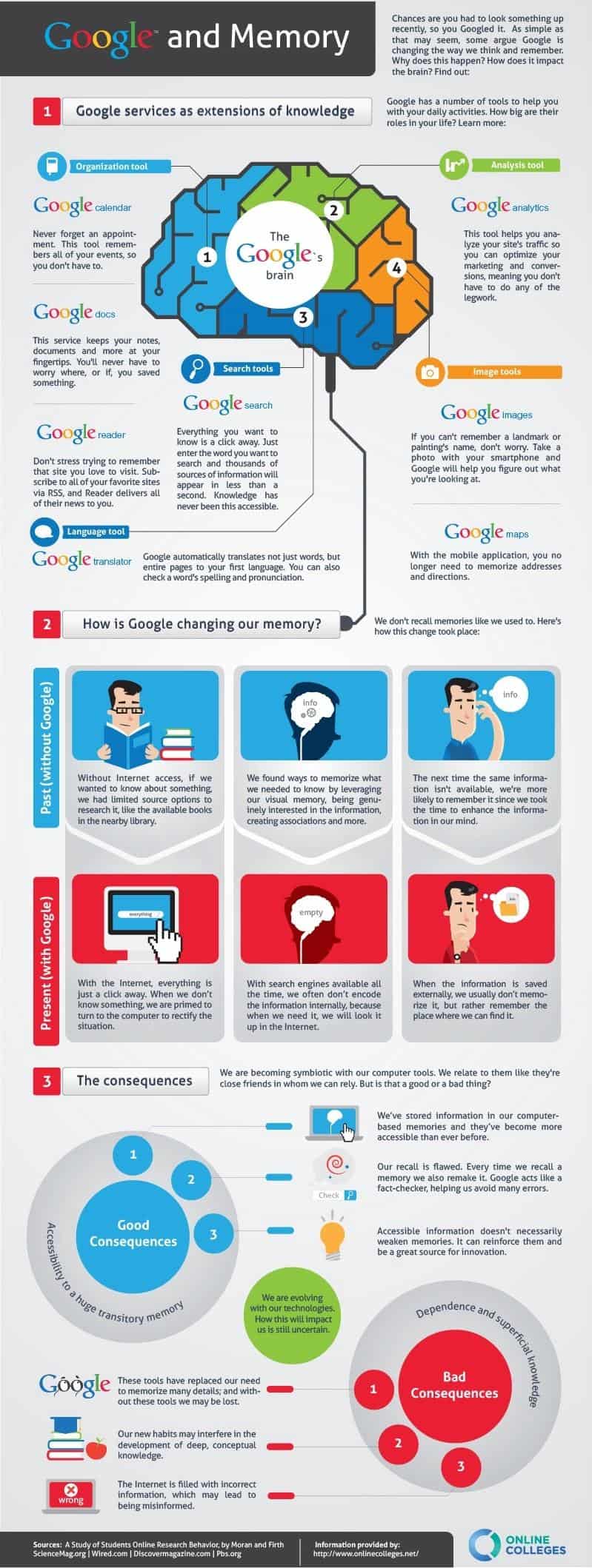
Ever since search engine become part of our life, the way how we find information changed completely. Before search engine, we have to go to library and look for whole day just for a small project or homework, but with Google/Yahoo/Bing, we can find the information we want in less than 30 mins or less.

See how Google impacting our memory. Click on the image to see in fullsize:


Hope you will enjoy this post, subscribe to my RSS or mailing list or follow me on blogger or twitter. :)
source:http://dailyinfographic.com/is-google-making-us-e-tards-infographic/googleandmemory

Wednesday, December 7, 2011

Which Geek Are You?

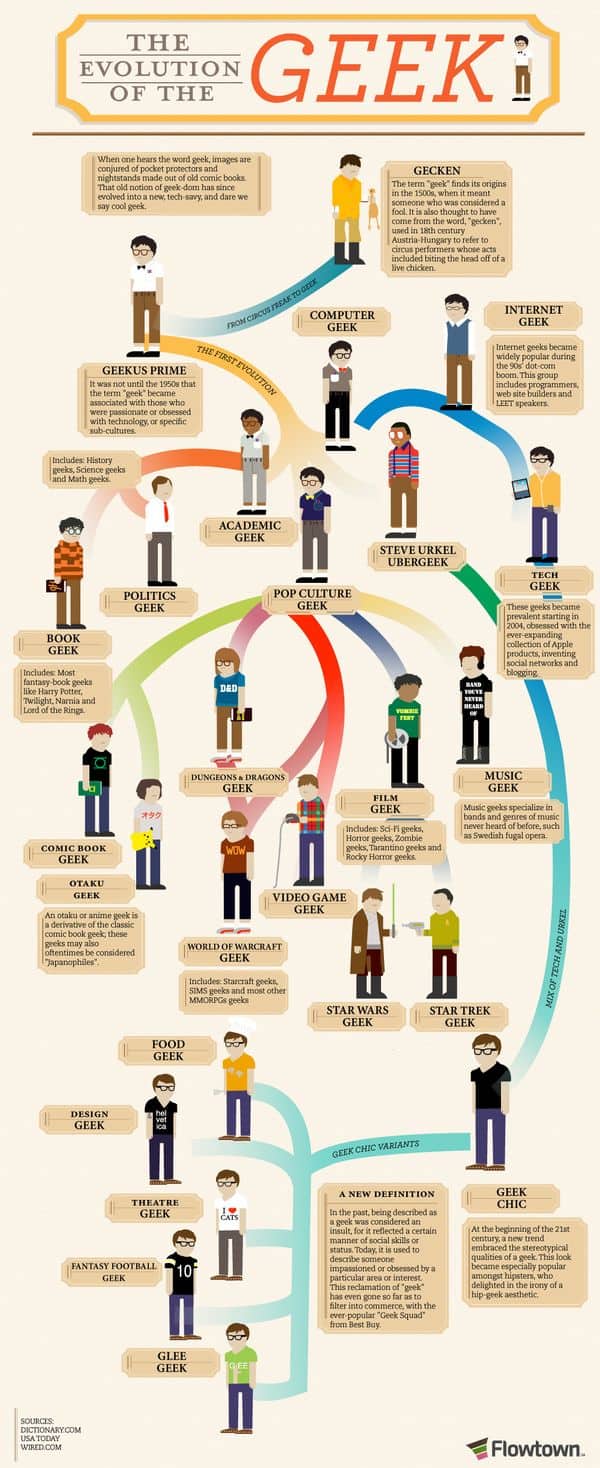
Geek is now no longer refer to nerd. There are so many types of geek nowadays. Check out the infographic below to find out which geek are you? :)
I am Star Wars and Internet Geek for sure. :)


Hope you will enjoy this post, subscribe to my RSS or mailing list or follow me on blogger or twitter. :)
source: http://dailyinfographic.com

Tuesday, December 6, 2011

Samsung Galaxy Nexus Teardown

How can this blog miss out any teardown? So here it is, the first teardown in this month on this blog.

Samsung Galaxy Nexus is released on last month (Nov 2011). Instead of Gorilla glass that being use on Galaxy S 2, oleophobic being use, I wonder why they choose it. Another cons is lower resolution of the front and back camera. 5MP and 1.3MP vs 8MP and 2MP on Galaxy S 2. Also no slot of external memory card.
Beside that, everything else is pretty much same like Galaxy S 2, except the screen is 4.65 inches with 720x1280. Galaxy S 2's screen only have 4.3 inches with 480x800. It also support NFC.

So here is the teardown:

If you prefer to read it on iFixIt website, here is the link:
Samsung Galaxy Nexus Teardown at iFixIt

The see the spec in detail, you can go to gsmarena:
http://www.gsmarena.com/samsung_galaxy_nexus-4219.php

For comparison between Galaxy Nexus and Galaxy S 2, also refer to gsmarena:
Galaxy Nexus vs Galaxy S2 in gsmarena

Galaxy S 2 teardown also being posted in this blog:
http://outdatedpenanguncle.blogspot.com/2011/07/samsung-galaxy-s-2-teardown.html

Hope you will enjoy this post, subscribe to my RSS or mailing list or follow me on blogger or twitter. :)
source: iFixit!

Sunday, December 4, 2011

Google and its numbers

I have posted a series of tutorial on how to run Android apps on Windows 7, now to take a break, lets look at how Google impacting the world and the environment.

Click on the picture to see it in full size.


Hope you will enjoy this post, subscribe to my RSS or mailing list or follow me on blogger or twitter. :)
source: http://dailyinfographic.com

Saturday, December 3, 2011

More info on BlueStacks


Some nice people at XDA forum put up a comprehensive tutorial/tips/hacking for BlueStacks, in my previous posts I also refer to the same page at XDA. If you want to also change BlueStacks to windowed (not fullscreen), there is a part for it. If you want to change the SD card capacity, there is tools to do that, what you need to do is to go this link below and find out the detail:
http://forum.xda-developers.com/showthread.php?t=1298332

http://outdatedpenanguncle.blogspot.com/2011/12/how-to-install-apk-into-bluestacks.html
http://outdatedpenanguncle.blogspot.com/2011/12/how-to-enable-android-market-for.html
http://outdatedpenanguncle.blogspot.com/2011/12/rearrange-apps-list-on-bluestacks.html

Have an adventure weekend. :)

Hope you will enjoy this post, subscribe to my RSS or mailing list or follow me on blogger or twitter. :)
source: XDA
pix source: BlueStacks

Friday, December 2, 2011

How to enable Android Market for BlueStacks

In previous post, I have showed how to install apk directly into BlueStacks, however some prefer to install apps through Android Market. Even though there was cases where virus being distributed on Android Market (because Android Market is not as stringent as Apple AppStore), it is still better than downloading apk from unknown sources.

BlueStacks don't offer Android Market apk, but we can find the apk from XDA forum. Download the zip file from this link:
http://forum.xda-developers.com/showpost.php?p=18336028&postcount=7

After unzip apk files from the zip file, install the apk in the following order using the method showed here:
http://outdatedpenanguncle.blogspot.com/2011/12/how-to-install-apk-into-bluestacks.html

1. GoogleServicesFramework.apk
2. OneTimeInitializer.apk
3. SetupWizard.apk
4. Talk.apk
5. Vending.apk
6. Gmail.apk
7. Maps.apk

If you don't have any google account, you can use normal method (web browser on PC) to create one new account.
If you already have google account, you can use the same user name and password to login to Android Apps.


After login, it is just like browsing Android Market on Android phone. Find your apps and install and launch it. Do note that apps that installed through Android Market has to be launch from Android Market. I cannot find the apps appear on launcher of BlueStacks.
Android Market also require internet access no matter to launch the apps that already install. So there might be a problem if you are offline (not connected to internet all the time).

I also installed Amazon AppStore on BlueStacks, however the apps that I installed through Amazon AppStore seems like taking forever to load (a.k.a not running). Probably it is because the apps or Amazon AppStore, I have to check again.

Because of limitation of Android Market and Amazon AppStore, I still think installing apk directly is the best method.

Update (Jan 19, 2012): If you are plan to upgrade BlueStacks and if you want to preserve the icon arrangement after you edit the apps.json, make sure you back up the file before you run the upgrade.

Update (Mar 31, 2012): Thank you for visiting this blog. If you are coming from (fake)outdatedpenanguncle dot blogspot dot in, please do not visit it again. That blog is copying this blog (OutdatedPenangUncle.blogspot.com) exactly. Please support this blog (OutdatedPenangUncle.blogspot.com) by g+ or like.


Hope you will enjoy this post, subscribe to my RSS or mailing list or follow me on blogger or twitter. :)
source: XDA

Thursday, December 1, 2011

Rearrange apps list on BlueStacks

After installing apk on BlueStacks, I found out that the app list is following the installation order. The last installed apps will be added into last icon in the gadget/launcher. At beginning it was okay since I have a few apps only, but later when I install more apps, finding apps become difficult. And I have a few apps that I always use, so I would want to move the icons to the first page of launcher.
However BlueStack does not allow moving icon of apps interactively like on iOS (iPhone/iPad/iPod touch). Fortunately, there is a way to do it, it is by hacking a BlueStacks' file.

Edit this file: %localappdata%\bluestacks\gadget\apps.json

1. To access this path quickly, put in the following path (without double quote) into the run box [the "Search programs and files box"] and hit Enter.
"%localappdata%\bluestacks\gadget\"
Windows run box at http://outdatedpenanguncle.blogspot.com/
A new Windows Explorer windows will open at that location.

2. Back up apps.json first.

3. Edit apps.json with text editor (Notepad, Textpad or PSPad).

4. The file is in one single line only. Each icon is represent by a pair of curly bracket {xxx}.

5. For example, I want to move ASTRO file manager to be first one. I will move the following code to be first one and separate it from the currently first one with a comma.
{"name": "ASTRO", "img": "com.metago.astro.png", "package": "com.metago.astro", "activity": "com.metago.astro.SplashActivity", "system": "0"}

6. I can also change the name of the apps. Example, Dolphin Browser HD that I installed is a Chinese version. The name for this apps become some funny characters after installation. So I edit it to Dolphin Browser HD.
{"name": "Dolphin Browser HD", "img": "com.dolphin.browser.cn.png", "package": "com.dolphin.browser.cn", "activity".......

7. For those apps that I removed using ASTRO, the icon still remain there, so I can use this method to remove the icon as well. Example, I want to remove TextFree apps, I will remove this code from apps.json.
{"name": "Textfree", "img": "com.pinger.textfree.png", "package": "com.pinger.textfree", "activity": "com.pinger.textfree.activities.TFSplash", "system": "0"}

Now I can access ASTRO, Android Market, Amazon AppStore and Talking Tom 2 FREE at first page:
Rearrange BlueStacks' icons at http://outdatedpenanguncle.blogspot.com/

Update (Jan 19, 2012): If you plan to upgrade BlueStacks, please backup the apps.json that you edited before running the update. Otherwise it will be overwrite by the update and all the edit will be gone.


Hope you will enjoy this post, subscribe to my RSS or mailing list or follow me on blogger or twitter. :)
source: some from XDA (http://forum.xda-developers.com/showpost.php?p=18333866&postcount=5)